Showing posts with label media. Show all posts

Friday, November 10, 2017

How To Upload Audio File To YouTube?


.

Guides for Uploading Audio to YouTube Successfully


Tagged as one of the most powerful marketing tools in today’s Internet field, YouTube is undoubtedly an avenue of stars. These days, some of the popular performers like special singers and actors are first discovered on YouTube. With this video hosting site, users can upload not just videos but originally created audios as well. You can upload Acapela songs, cover albums, your own version of popular songs, and many more. Although, bear in mind that the way to upload audio files to YouTube is different from uploading videos. The process is much more difficult, complicated and sometimes confusing.

Luckily, audio creators do not need to worry because there are several tips and tricks on how to easily upload songs on YouTube. If you want your music to be heard worldwide, check out these efficient audio uploading methods below.

Being an exclusive video hosting website, YouTube doesn’t accept or recognize common audio files such as MP3, WMA, AAC, and all others. If you want to upload an audio on the site, it only means that you need to create a simple video file which contains your audio clip with an audio editor. Currently, YouTube accepts the following video formats: MOV, MP4, AVI, WMV, FLV, 3GP and Webm. Alternatively, you can utilize a third party uploader for uploading the audio. Now, let’s learn the two ways for uploading audio to YouTube.

1. Windows Live Movie Maker


The Windows Live Movie Maker is a free video editing software provided by Microsoft, you need to download Windows Live Essential then install it. This tool can edit videos, merge clips, convert audio files to video formats, create complex video effects and more.

Let’s see the steps to upload audio on YouTube using it:

Open the Windows Live Movie Maker, drag a photo into the window. The photo can be your very own cover art or any photo you wish to be seen on the screen.
Click “Add music” – “Add music from PC” then choose the song or audio file you want to upload on YouTube.
Hit “Open” and then click “Project” – “Fit to Music”.
Click the “YouTube” icon on top and choose the video resolution you want.
Sign in your Microsoft Account as well as YouTube account.
After that, you need to input the title, description and tags for the file.
Wait for the video uploaded completely on YouTube.
edit audio for uploading

2. Tunestotube

http://www.tunestotube.com/ 

Tunestotube is an online application which aims to help users upload audio files to YouTube without editing or other preparations. It is free to use but you need to link your YouTube account first to the site allowing them to access info from your channel.

Visit their website and click “Connect YouTube account”.
After successful linking your YouTube account, go back to the site.
Select the audio file and photo you want to share on YouTube.
Click “Upload files” and input the necessary info for the audio track.
When you are done with file uploading, click the “Create video” button on the side.
songs to YouTube uploading

The site is easy to use and doesn’t require the special video editing tools which makes it perfect for novice and non-technically adept audio uploaders. However, you can only upload up to 50MB of file. Besides, security issues have been a major concern to many users since the website will automatically access your own YouTube account.
.

Extracted From: https://www.apowersoft.com/upload-audio-to-youtube.html

How To Create Animated Gif With GifMaker.Me


.
Create Animated Gif With GifMaker.Me
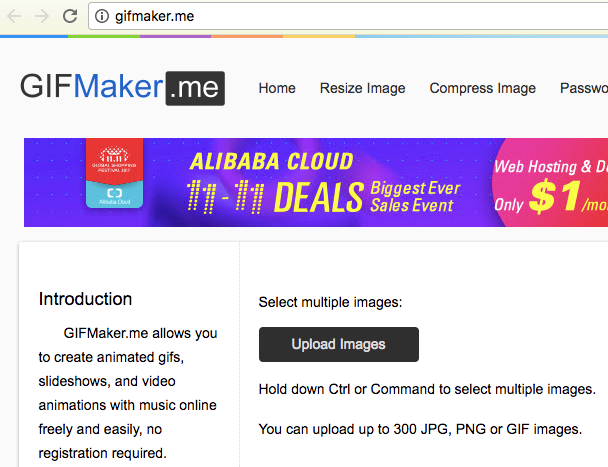
GIFMaker.me allows you to create animated gifs, slideshows, and video animations with music online freely and easily, no registration required.

1. Go to the web site

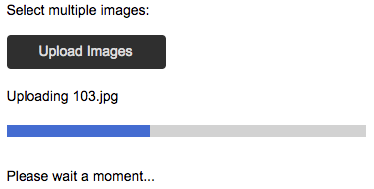
2. Upload Images

Find the upload images button (refer picture above)
Click the button.
Select your images.
Wait for the upload process to finish.

3. Preview the uploades images

4. Select Output Option

5. Get your output.

6. Sample

.

Friday, July 28, 2017

Powtoon Promo Animation Videos Step-By-Step


.
Videos have huge impact on how target audience gets engaged with brands, join in social communities or become great brand advocates, you name it. The benefits that videos can bring to businesses are huge and unpredictable. However, producing fantastic videos is tough and requires much time and resources. Even when you have put a lot of efforts into creating awesome videos, it’s not a guarantee that you will get positive results.

Fortunately, using Powtoon, you can create amazing videos in next to no time, which also saves you a great deal of money.

An Introduction to Powtoon

Knowing about Powtoon Services

Powtoon Video Product Demos

Powtoon Quickstart Guide and Essential Steps

*
Let’s Get Started!

Powtoon Sign-up Process

Getting Familiar with the Dashboard

*
Mastering Powtoon Cloud Studio - Library

Library Introduction

Text Effects and Image Holders

Animation

Background

Markers, Action Buttons and Shapes

Other Cool Things in the Library

*
Mastering Powtoon Cloud Studio – Menu Bar and Slides

Powtoon Studio Menu Bar

Powtoon Studio Slides

*
Mastering Powtoon Cloud Studio – Timeline, Object Effects and Sound

Understanding Timeline Bar

The Object Effects

Sounds and Canvas

Create Whiteboard Explainer Video With VideoScribe


.

Create Whiteboard Explainer Video With VideoScribe


VideoScribe gives you the tools to explain, market and explore your product or service without the need for a design or technical professional. Often called ‘Whiteboard Animation’ or ‘Doodle’ videos, VideoScribe replicates a stop-motion capture style of drawing, giving you the ability to explain concepts, illustrate talks and engage audiences.

Getting started

-The projects window
-Interface overview

Adding images to the canvas
-Adding from the library
-Adding from a local drive
-Adding from a DropBox account
-Adding from a URL
-Moving, resizing and rotating
-Adding non-vector graphics
-Saving your scribe

The timeline
-Re-arranging the running order
-Overall project timing
-Setting the draw time
-Previewing your scribe
-Zooming
-Deleting items, cut, copy and paste

The camera position
-Viewing the angle
-Setting the angle
-Clearing the angle
-Changing the transition time

Image properties
-Exporting out an SVG image
-Replacing images
-Changing the element style
-Rotating and flipping an image
-Changing the drawing colour
-Hexadecimal colour numbers
-Changing colours in images

Text Properties
-Adding text
-Resizing text
-Rotating text
-Editing text
-Changing colour
-Aligning text
-Importing Fonts

Advanced image properties
-Applying filters (blur, glow, shadow etc)
-Changing the hand (image level)
-Changing the hand (project level)
-Changing the paper
-Image quality

Applying advanced effects
-Installing additional hands & pens
-Using the ‘move in’ function
-‘Behind glass’ effect
-‘Morphing’ from one element to another

Adding audio and voice over
-Adding a soundtrack
-Adding/recording a voiceover
-Adjusting the volume

Exporting, creating & publishing
-Produce as PDF
-Export to file for sharing
-Create as a video file
-Publishing your video


.

Friday, July 8, 2016

Making Sense of Pattern Grading


.
One pattern, three sizes
Size 12Size 16Size 6
A base size 12 pattern (left) can be graded up to a size 16 (center) using the cut-and-spread method, and similarly graded down to a size 6 (right)  by cutting and overlapping along specified cut lines.

Methods of gradingThere are three basic methods of grading: cut and spread, pattern shifting, and computer grading. No one method is technically superior and all are equally capable of producing a correct grade.
Cut-and-spread method
Cut-and-spread method: The easiest method, which is the basis of the other two methods, is to cut the pattern and spread the pieces by a specific amount to grade up, or overlap them to grade down. No special training or tools are required-just scissors, a pencil, tape, and a ruler that breaks 1 in. down to 1/64.

Pattern shifting
Pattern shifting: Pattern shifting is the process of increasing the overall dimensions of a pattern by moving it a measured distance up and down and left and right, (using a specially designed ruler) and redrawing the outline, to produce the same results as the cut-and-spread method.


The most recent development, computer grading, is the fastest method, but tends to be an investment only larger manufacturers can afford. However, sophisticated home computer software is becoming affordable.
.

Thursday, October 1, 2015

Cardiff Castle Panoramic View

360° panorama of the grounds of Cardiff Castle, showing (l to r) the interpretation centre, the barbican and South Gate, the Black Tower, the Clock Tower and the main range, the reconstructed Roman Wall, the shell keep on the motte, and the Norman banked earth defences

Cardiff Castle (Welsh: Castell Caerdydd) is a medieval castle and Victorian Gothic revival mansion located in the city centre of Cardiff, Wales. The original motte and bailey castle was built in the late 11th century by Norman invaders on top of a 3rd-century Roman fort. The castle was commissioned either by William the Conqueror or by Robert Fitzhamon, and formed the heart of the medieval town of Cardiff and the Marcher Lord territory of Glamorgan. In the 12th century the castle began to be rebuilt in stone, probably by Robert of Gloucester, with a shell keep and substantial defensive walls being erected. Further work was conducted by Richard de Clare, 6th Earl of Gloucester, in the second half of the 13th century. Cardiff Castle was repeatedly involved in the conflicts between the Anglo-Normans and the Welsh, being attacked several times in the 12th century, and stormed in 1404 during the revolt of Owain Glyndŵr.

Monday, March 9, 2015

Cardiff change back from red to blue


Cardiff City have unveiled a new badge that will be worn on their kits from the 2015-16 season.

Owner Vincent Tan gave the go-ahead for the Championship club's home shirts to change back from red to blue and to make the Bluebird more prominent on the badge after consulting supporters.

Sian Branson, founder of the Bluebirds Unite group, which campaigned for the colour change, welcomed the move.

"At least I know I'm supporting CCFC when I look at this badge," she said.

"The future's blue and we don't have to feel as detached from our club any more."

Branson added there was "still plenty that needs to be done" and hoped the fans and club could continue to work together.

The club's new crest features an oriental dragon based on the one featured at Cardiff City Hall.


Source:
http://www.bbc.com/sport/football/31795873

http://www.walesonline.co.uk/sport/football/football-news/cardiff-citys-new-crest-revealed-8799490